

Tickler file: how the 1 to 31 system works, and a digital version
What a tickler file is, how the 43-folder 1 to 31 system works, and how to run a digital tickler file in a CRM with a date field, a saved view and a widget.

 by Benjamin Wagner
A tickler file is a set of date-labelled folders, 31 for the days of the month and 12 for the months, that puts a paper, a bill or a follow-up in front of you on the day it is due and not before. A digital tickler file keeps the idea in a list: every item has a date, the list is sorted by that date, and one view shows what is due today. In Customermates that is a "Next step date" field, a saved view sorted by it and the Upcoming widget on the dashboard.
This guide explains what a tickler file is, walks through the 43-folder system with a worked example, compares paper, an Outlook follow-up flag, a spreadsheet and a CRM, and sets up the digital version in Customermates step by step. Customermates publishes it and appears in its own labelled sections, including where it is the wrong choice. Third-party facts were checked on 11 November 2026; the sources are linked where they are used.
- File an item under the date you need to see it again, and open only today's folder each morning. The file does the remembering until the day comes.
- 43 folders: 31 numbered for the days of the month and 12 named for the months. Items for later months wait in a month folder and move into the day folders when that month starts.
- A follow-up flag on a single email, with a start and due date and an optional reminder. It follows one message, not the client behind it.
- A Date field, a view sorted by it and the Upcoming widget with an Overdue section. Works on every plan, self-hosted included. It sends no reminders: the list is the reminder.
- Customermates publishes this guide. The other options are described by fit, not ranked.
What is a tickler file?
A tickler file is a reminder system made of date-labelled folders. You file a paper or a note under the date you need to deal with it, and each day you open that day's folder. It is also called the 43 Folders system, and Wikipedia describes its structure as 31 daily folders plus 12 monthly folders (Wikipedia: Tickler file). The name refers to the file "tickling" your memory when the item matters.
The idea is older than productivity books. Wikipedia notes that law offices in the early twentieth century, and possibly earlier, filed tickler cards by date so that a lawyer received the card as a deadline approached, for example for a trademark renewal or a motion filing. David Allen, whose book Getting Things Done covers the system, calls it on his site "like having your own post office to mail things back for your attention and awareness" and says it demands only one second per day of new behavior (Getting Things Done: Be your own post office).
Anything you want to see again on a certain day can go in: a bill, a ticket, a form, a note to call someone. In business the most useful items are conversations that are waiting on a date: a proposal you sent, a prospect who asked you to call back after an event, a renewal you want to open early.
How does the 43-folder tickler file work?
Label 43 folders
Label 12 folders for the months and 31 for the possible days of the month, which is how Allen describes the set.File each item by date
Something you need to see later this month goes into that day's folder. Something for a later month goes into that month's folder.Open today's folder each morning
Take everything out and deal with it: do the task, send the message, pay the bill, or file it again under a later date.Move the empty folder to the back
Wikipedia describes the daily rhythm this way: the current day folder is emptied and placed at the back of the set, so tomorrow's folder is at the front.Empty the new month into the day folders
On the first of a month, open that month's folder and sort its items into the day folders. Nothing needs a second look before its day.
Here is a worked example. It is invented, and it starts on Wednesday, 11 November 2026.
| Item | See it again on | Paper tickler | Digital tickler |
|---|---|---|---|
| A proposal went out today; the client said they would decide by Wednesday, 18 November | 18 November | Folder 18 | Next step "Ask for the decision", Next step date 18 November |
| A prospect said "call me after our trade fair on 3 December" | 3 December | Folder December, moved into folder 3 on 1 December | Next step "Call about the proposal", Next step date 3 December; it enters the Upcoming widget once the date is inside its days-ahead window |
| You need a supplier's price before you can answer a client; it is promised by Friday, 13 November | 13 November | Folder 13 | Next step "Chase the supplier price", Next step date 13 November |
| A client contract ends in January and you want to open the renewal talk in December | 1 December | Folder December | Next step "Start the renewal conversation", Next step date 1 December |
The digital version drops the folder rotation. Nobody moves a folder to the back, because the sort order does it, and the month folders disappear because a date in March simply waits in the list until it comes into view.
Which tickler file fits: paper, an Outlook flag, a spreadsheet or a CRM?
Four ways cover almost every case. The Customermates row is our own product; the others are described by what they do.
| Option | How the date works | Does it remind you? | What sits next to the item | Fits when |
|---|---|---|---|---|
| Paper, 43 folders | A folder per day and per month | No. You open today's folder each morning | The paper itself | You handle physical mail, bills, tickets and forms |
| Outlook follow-up flag | A flag on a message with Today, Tomorrow, This Week, Next Week, No Date or a custom start and due date | Add Reminder sets a reminder; flagged messages appear in the To-Do Bar, in Tasks and in the Calendar daily task list | One email message | The follow-up starts from an email in Outlook |
| Spreadsheet | A date column you sort | Not unless you build it yourself | A notes column | One person with a short list |
| Date field in a CRM (Customermates) | A Date field on the client or deal | No. Customermates sends none; a sorted view and the Upcoming widget are the reminder | The record with notes, linked contacts and companies and, from Pro, LinkedIn and email conversations | Clients and deals with a history, for one person or a team |
Microsoft documents the flag options for Outlook for Microsoft 365, Outlook 2024 and Outlook 2021, and notes that with an IMAP account you cannot change the flag text or set start and due dates. Checked on 11 November 2026 against Microsoft Support: Flag email messages for follow up.
How to choose:
- Papers you must physically keep: the paper tickler. Nothing digital holds the original letter.
- A follow-up that starts from one email, and you live in Outlook: the flag is the shortest route.
- A short personal list: a spreadsheet is enough. The Excel CRM template guide shows where a sheet starts to strain.
- Client follow-up across LinkedIn and email, with a history to read before you call: a CRM, because the date sits on the record the conversation sits on. From Pro, the unified inbox puts those conversations on the client.
How do you use a tickler file for sales follow-up?
Five rules turn the folders into a sales habit:
- One real date per open conversation. Use the day you promised, not "in a week", so the follow-up lands when the client expects it.
- Write the action beside the date. "Send revised scope" beats "follow up".
- After every contact, move the date or clear it. A deal with no date is the one that drops out of sight.
- Open the list at the same time every day and start with what is overdue.
- Once a week, look for records with no date. That is the leak a tickler cannot show you by itself.
A digital rolodex tells you who someone is; the tickler tells you when to write. For the wording of the message, read how to write a sales follow-up email. The client follow-up software page shows the same dated next step with LinkedIn and email conversations on the client record.
How do you set up a digital tickler file in Customermates?
First, how the paper parts map to Customermates:
| In the paper tickler | In Customermates |
|---|---|
| 31 day folders | A Date field "Next step date". The Upcoming widget lists today and the next days, 14 by default and up to 90 |
| 12 month folders | Nothing to maintain. A record dated in March waits in your sorted view until its date enters the widget's window |
| Open today's folder | Open the dashboard: today's records and the Overdue section |
| Move the folder to the back | Move each record's date after you act, or clear it |
| The paper in the folder | The record: notes, linked contacts and companies, files and, from Pro, conversations |
| Remembering to open the drawer | Still your habit. Customermates sends no reminders |
Add two fields
In Data model, add a field of type Date named "Next step date" and a field of type Text named "Next step" to Contacts or Deals, or to both if your leads live on deals. On a plan with Mate, you can ask it to add them. Tasks have no built-in due date, so the same Date field works there too; task management shows how tasks link to clients.Save the tickler view
Open Appearance, show Next step and Next step date, set Sort by to Next step date, Ascending, then click New view and name it "Tickler". The oldest dates sit at the top. Custom date filters take fixed dates, so sorting is what keeps the list current without editing a filter each week. Choose Share… in the view's menu to show it to everyone in the workspace or to selected roles.Add the Upcoming widget
On the Dashboard, press Add widget and choose Upcoming. Pick the list and the Next step date field, and filter out finished records, for example Won and Lost deals. The widget lists the records due in the next days and has an Overdue section for earlier dates.Save a no-date view
On the same list, filter Next step date with is empty and exclude Won and Lost in the Stage field. Whatever shows up here has dropped out of your tickler.Work the list every morning
Start with Overdue, then today. Do the step, write one line in the record's notes and move Next step date to the next promised day, or clear it when nothing is pending. Switch the view to Calendar on the same date if you prefer days to rows, and drag a record to another day to move its date.
Date fields, saved views and the Upcoming widget have no plan limit: they work on Free, on paid plans and self-hosted. To see the same dates in another calendar app, create a subscription URL in the calendar: it is a private, read-only feed, and your calendar app decides how often it refreshes. The dashboard guide covers the widget options and the calendar guide covers the feed.
Customermates Cloud has a Free plan for 1 person and 250 records, without the inbox, Mate or routines. Your first workspace starts with a 14-day trial of Pro and then moves to Free unless you choose a paid plan; paid plans start at €12 per user per month, billed monthly, see the pricing page. The open-source core can be self-hosted with no licence fee, without the inbox and Mate. To try the tickler on your own clients, start your 14-day trial: Pro, no credit card. Add the two fields to Deals first.
Common questions about the tickler file
What is a tickler file?
A reminder system made of date-labelled folders: 31 for the days of the month and 12 for the months. You file an item under the date you need it, and each morning you open that day's folder. It is also called the 43 Folders system.
Why is it called a tickler file?
Because it tickles your memory at the right moment. The file holds the item until its day, so you do not have to carry it in your head.
What is another name for a tickler file?
The 43 Folders system. Wikipedia also names tickler cards for the legal-office version of the same idea. In an office or a CRM, a dated follow-up or next step is the same thing in a different container.
What does tickler mean in business?
A dated reminder that brings a matter back to you when it is due. In legal work it is a card or entry that surfaces a deadline; in sales it is the dated next step on a client or deal.
How do I make a tickler file?
Label 31 folders 1 to 31 and 12 folders January to December. File each item under the day, or month, you need to see it again. Open today's folder every morning, and on the first of each month sort that month's folder into the day folders.
Is there a digital tickler file?
Yes. Any list with a date column that you sort and open daily works: an Outlook follow-up flag for emails, a spreadsheet for a short personal list, or a Date field in a CRM with a saved view and a dashboard widget for client follow-up.
Is a tickler file the same as a calendar?
Not quite. A calendar holds appointments at a time. A tickler holds items you want to see again on a day, with the item or its context attached. A sorted list with a date does both jobs, and Customermates can also show the same dates in its Calendar.
Does Customermates send tickler reminders?
No. There are no notifications and tasks have no built-in due date. You add a Date field, sort a saved view by it and show it in the Upcoming widget; the list is the reminder. If you need a push alert, an Outlook flag with a reminder or a scheduler reading the date through the API can send it.
Third-party facts checked on 11 November 2026 against Wikipedia on the tickler file, David Allen's Getting Things Done site and Microsoft Support on flagging messages for follow up.
Start from one description
One description. A workspace your agent built.
This is what setup builds from one sentence. Sample data, the real product.
Describe your business
One sentence about your team, your clients and how you sell.
Mate builds it
It asks a few questions, then creates the lists, pipeline, dashboard and playbook.
Work in it
Connect LinkedIn and email. Click through a finished example below.
We're a four-person strategy consultancy. Track clients, engagements and proposals, and help us follow up with prospects on LinkedIn.
- Mate
- Claude
- ChatGPT
- Cursor

 Mate
 Claude
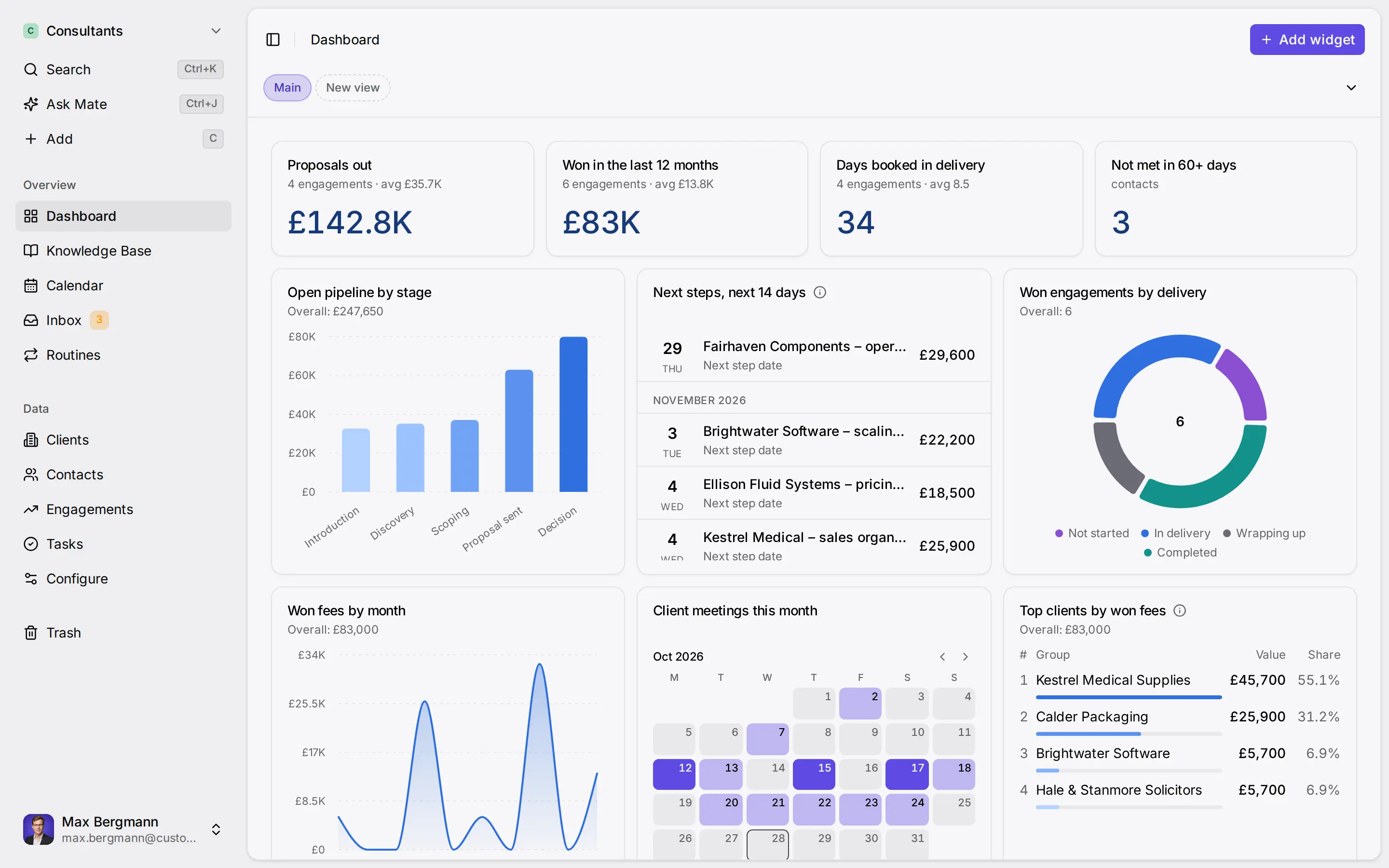
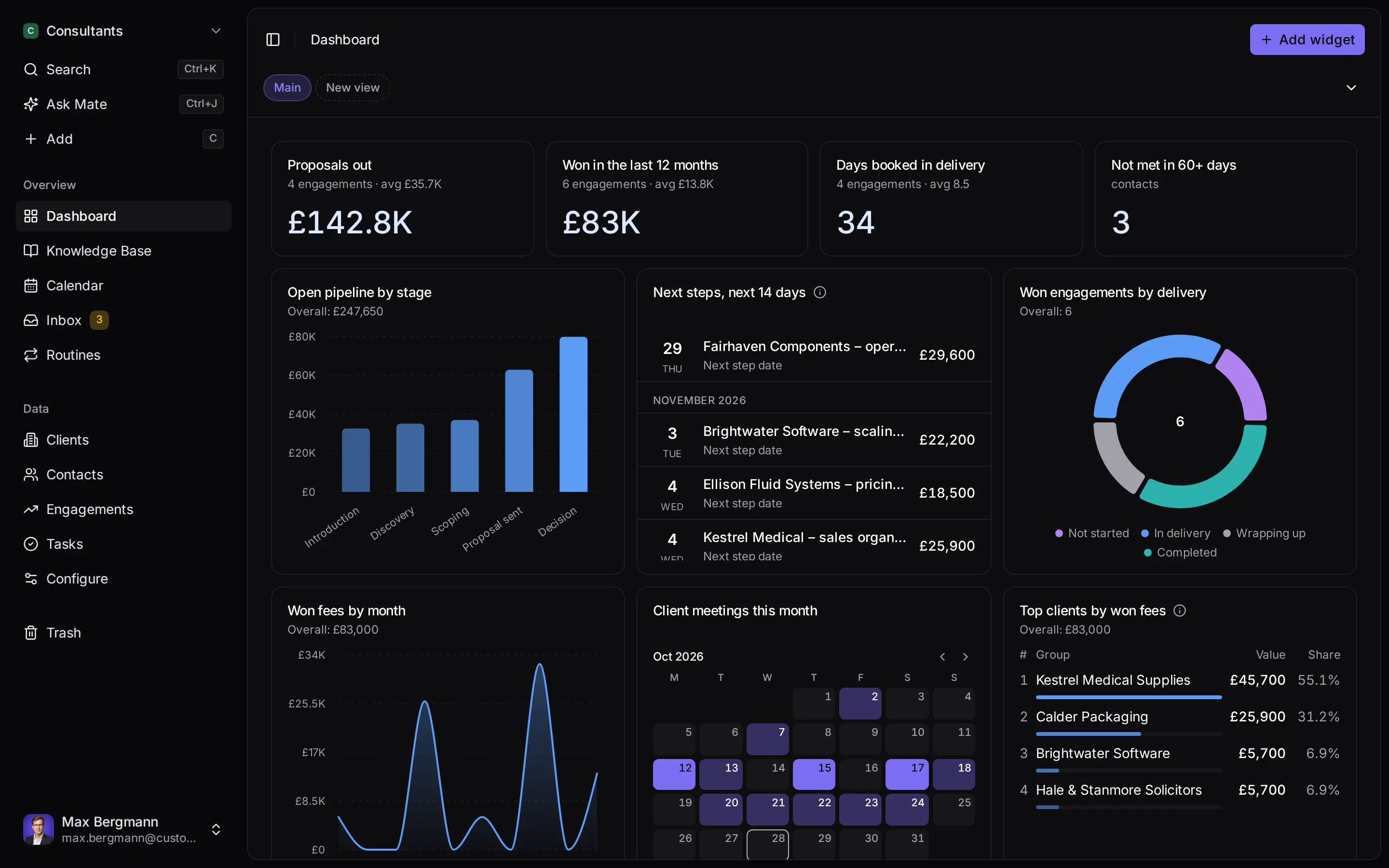
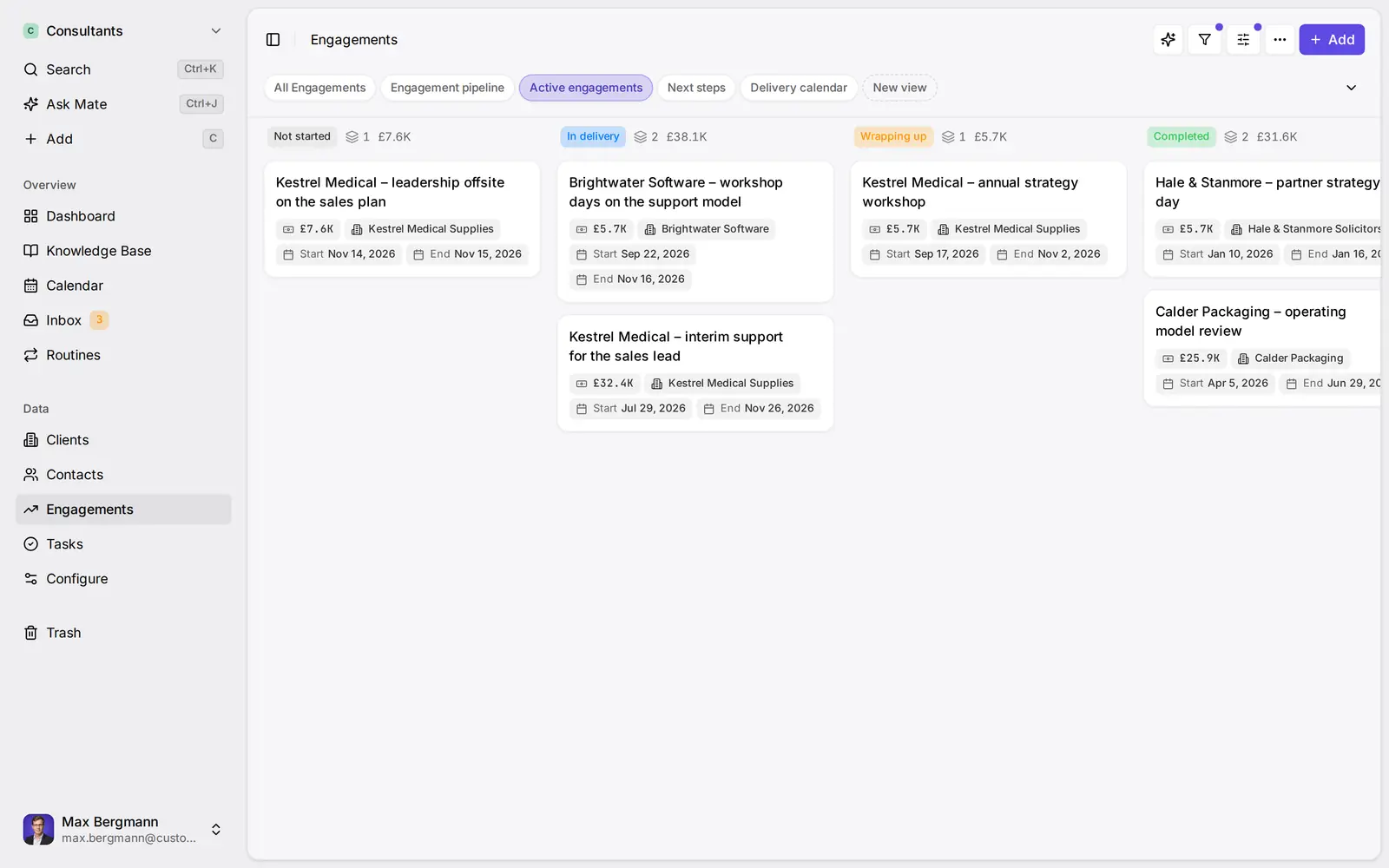
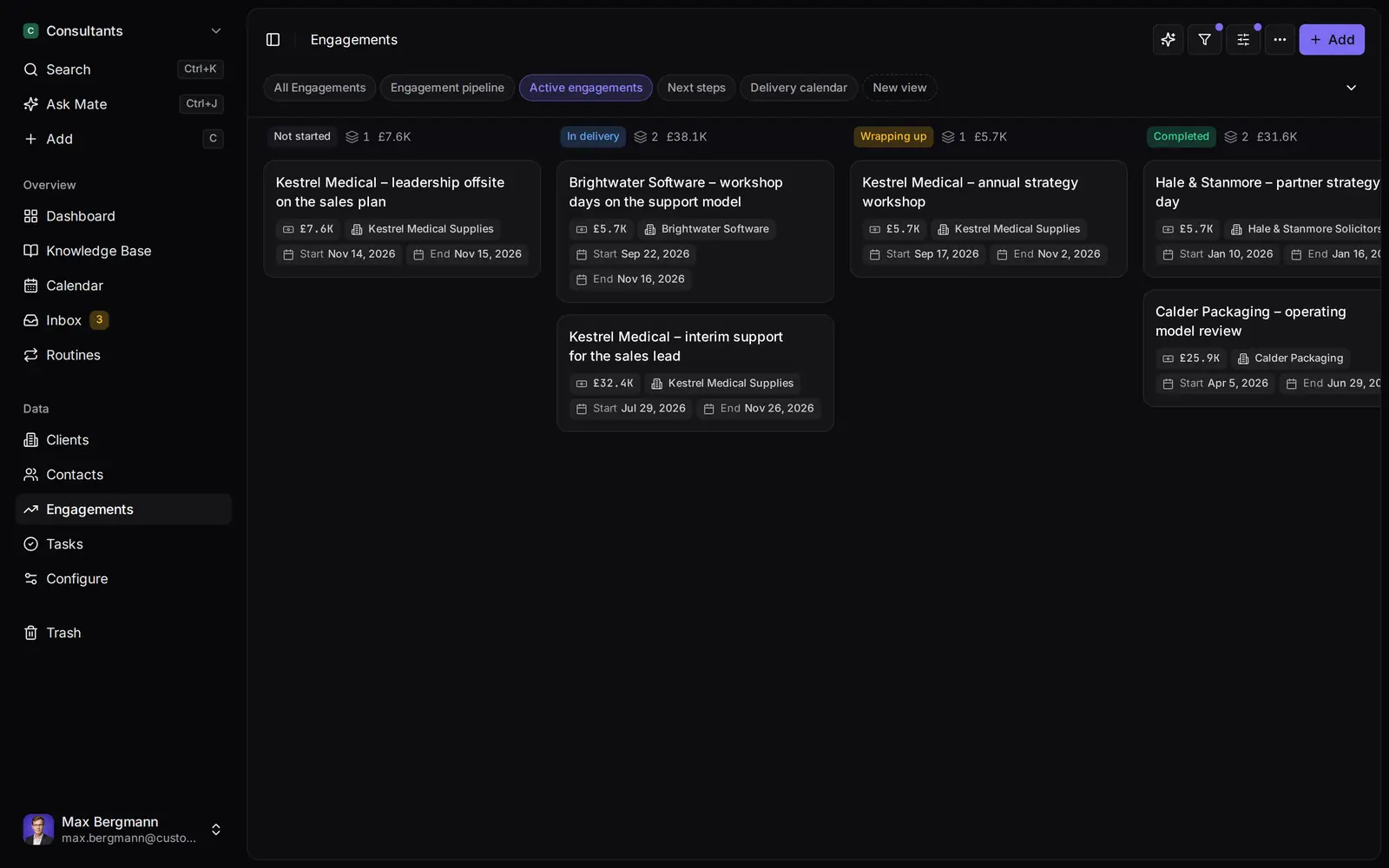
Widgets built from the workspace's own lists and fields
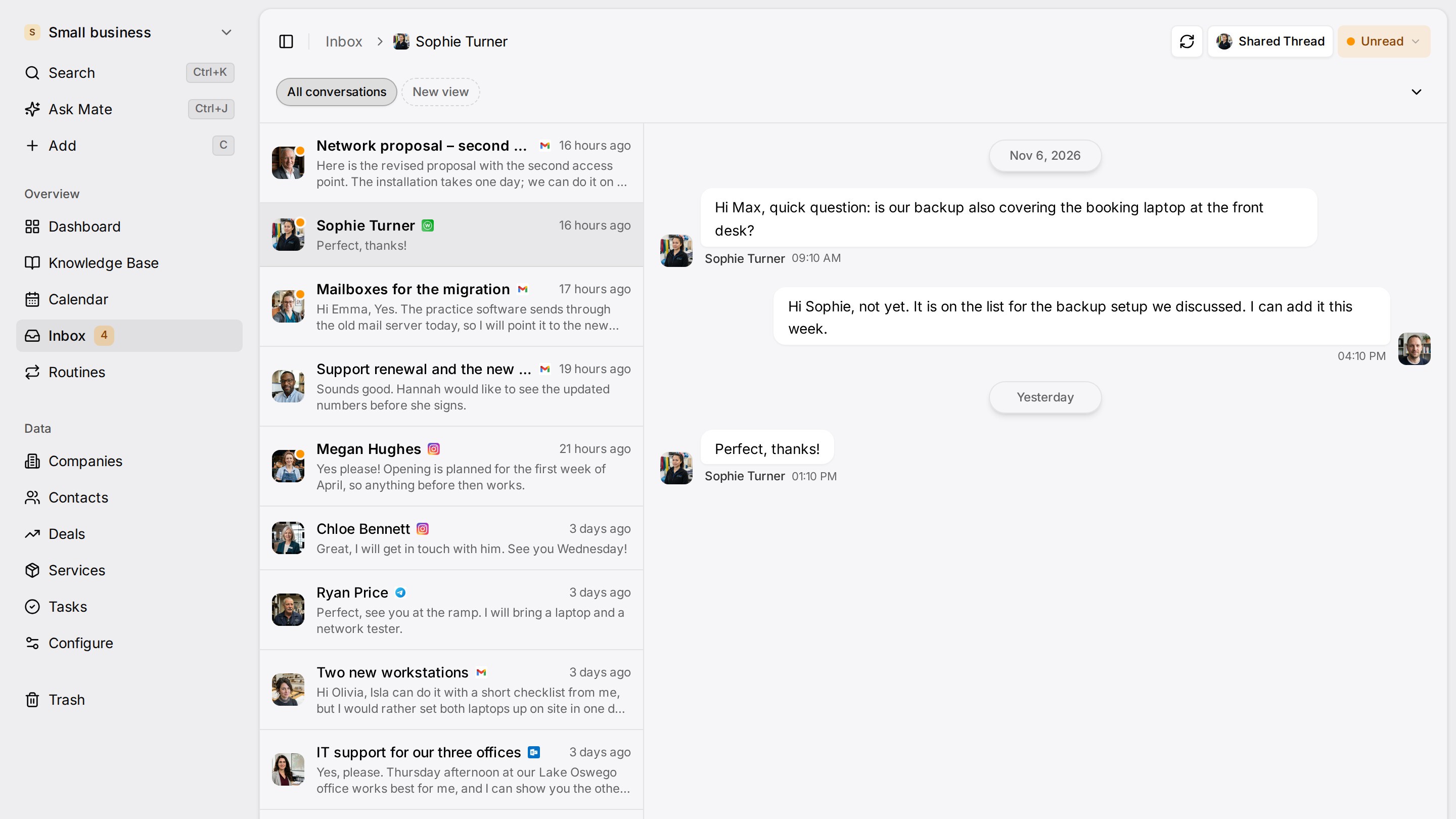
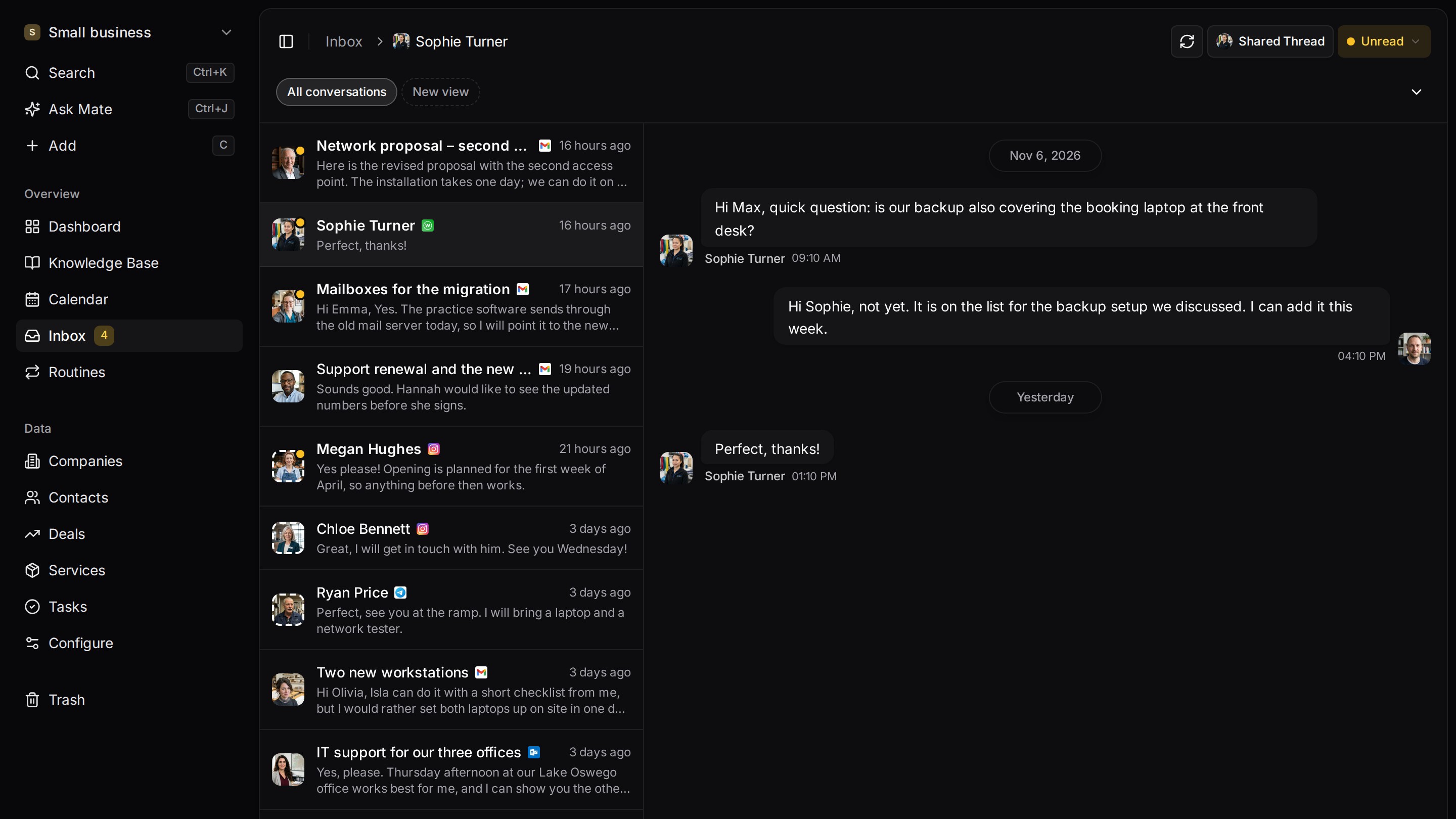
Every client conversation from email, LinkedIn and WhatsApp in one place. Mate sets up your workspace and drafts the follow-up, you review and send. Works with Claude, ChatGPT or any agent that speaks MCP.
Related pages
Client Follow-Up Software
Client follow-up software with LinkedIn and email on each client, a dated next step per conversation and Mate drafts you review and send. 14-day trial.
Task Management
Tasks in Customermates link to contacts, organizations, deals and services, with assignees, notes and custom fields. No due dates or reminders built in.
Sales Follow Up Email After No Response: Templates
Follow up email after no response: ready sales templates for a proposal, a meeting recap and a gentle reminder, with a timing table and when to stop.
Digital Rolodex: Options Compared and How to Start
What a digital rolodex should hold, how phone contacts, a spreadsheet, Notion, a personal CRM and a business CRM compare, and how to move your cards.
Customermates
Follow up on every client conversation
Start with one channel and one client on Customermates Cloud, or self-host the open-source core.
✓ No credit card required ✓ First 14 days free