Loading...
Table & Kanban View
Learn how Customermates helps teams work through records in table and Kanban layouts with filters, grouping, and fast operational updates.
Overview
Customermates can show the same contacts in multiple working surfaces. Teams often start with a dense table view, switch to card view for faster visual scanning, and then organize the same records as a Kanban board along the sales pipeline.
The dataset itself stays the same. Only the presentation changes to match the kind of work the team is doing.
This page shows the same contacts overview in three steps: table view, card view, and Kanban view grouped by the sales pipeline.
The same contacts in three views
The sequence below makes it clear how the same contacts can be read and managed differently depending on the working mode.
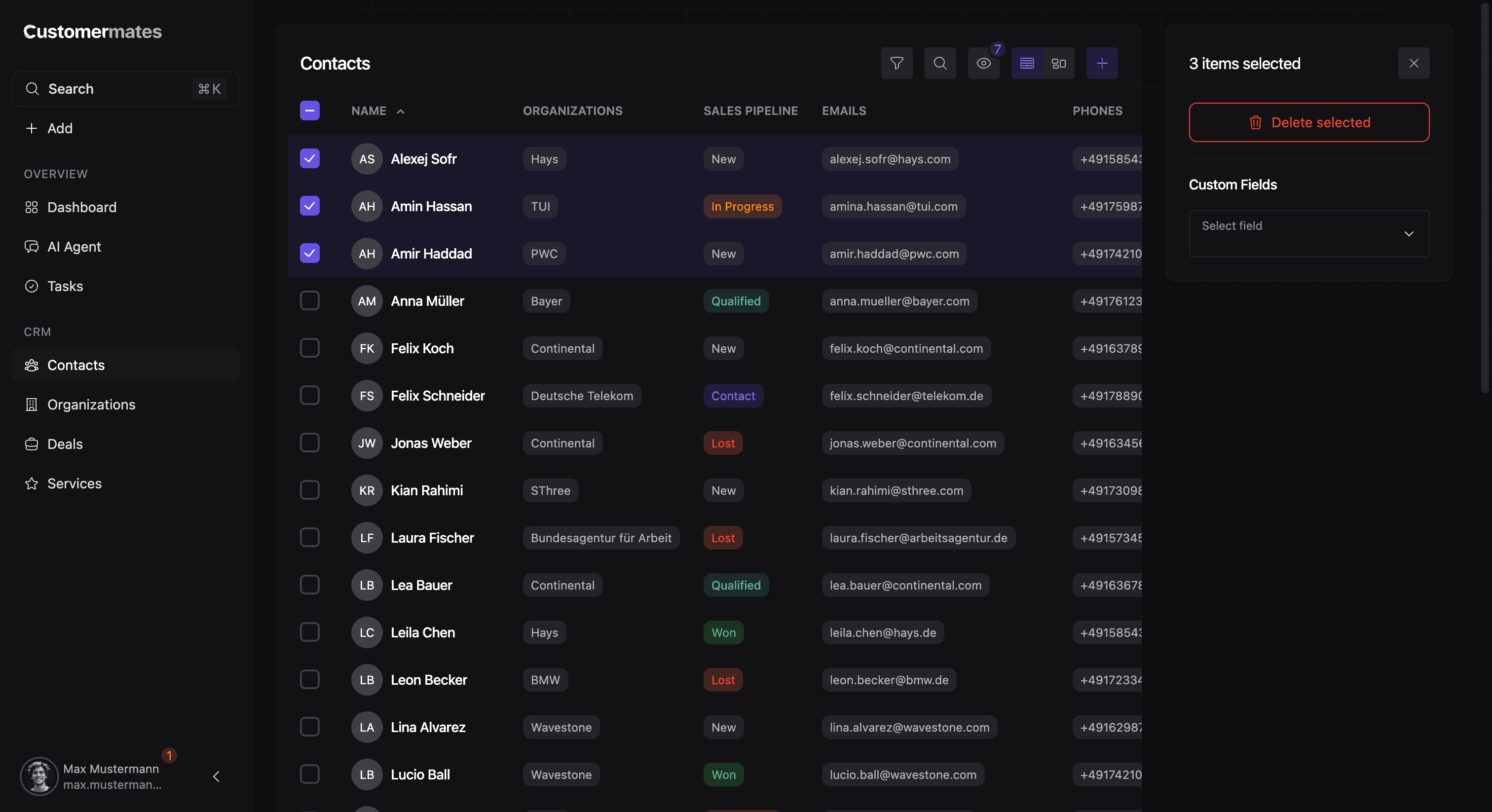
Table view
The table view is built for dense operational work. It is the right format when teams need to review many contacts at once, compare values directly, and move quickly through a larger dataset.
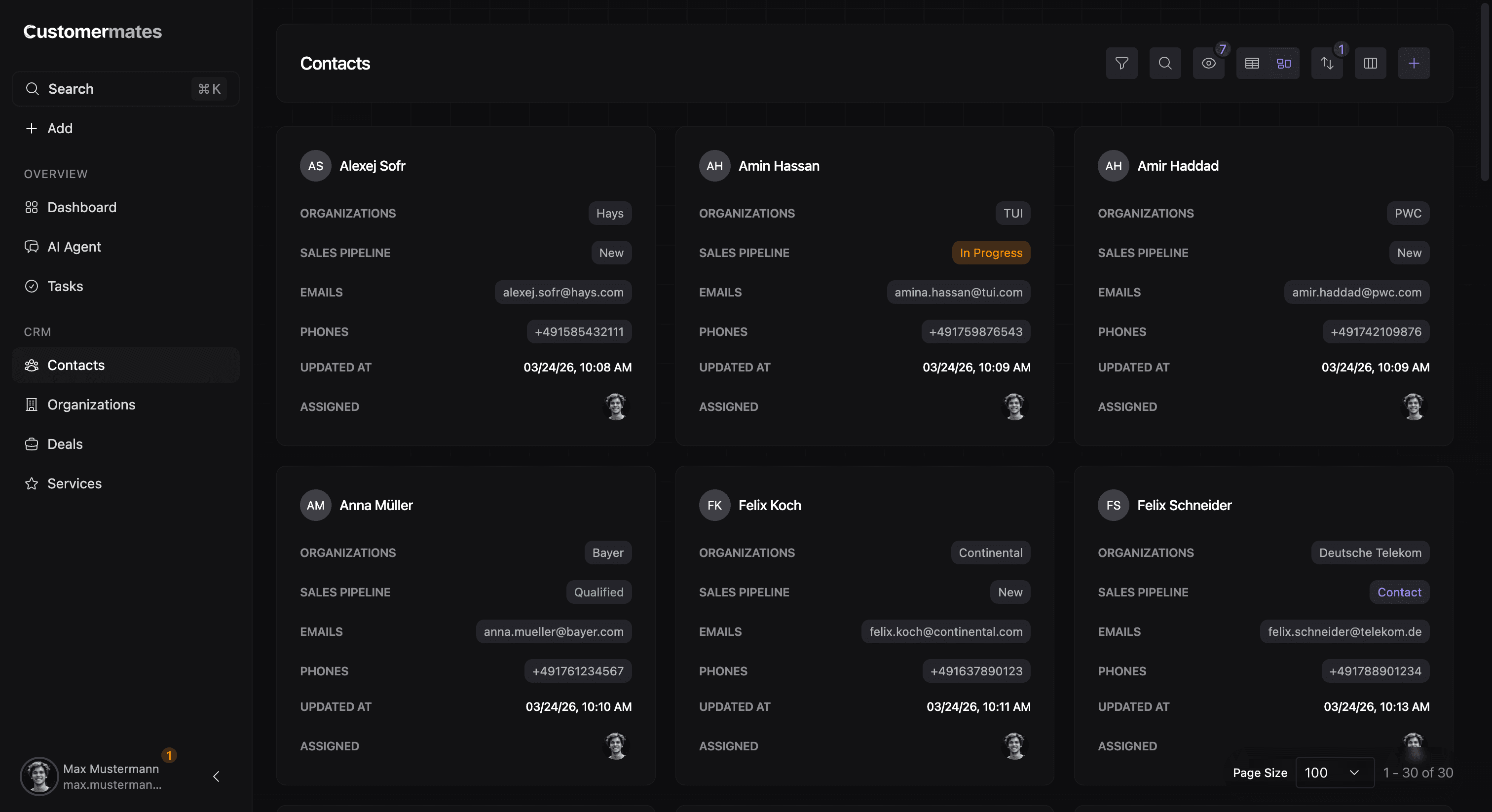
Card view
The card view presents the same contacts in a more visual format. It works well when users want to scan the records more quickly without leading with columns and table cells.
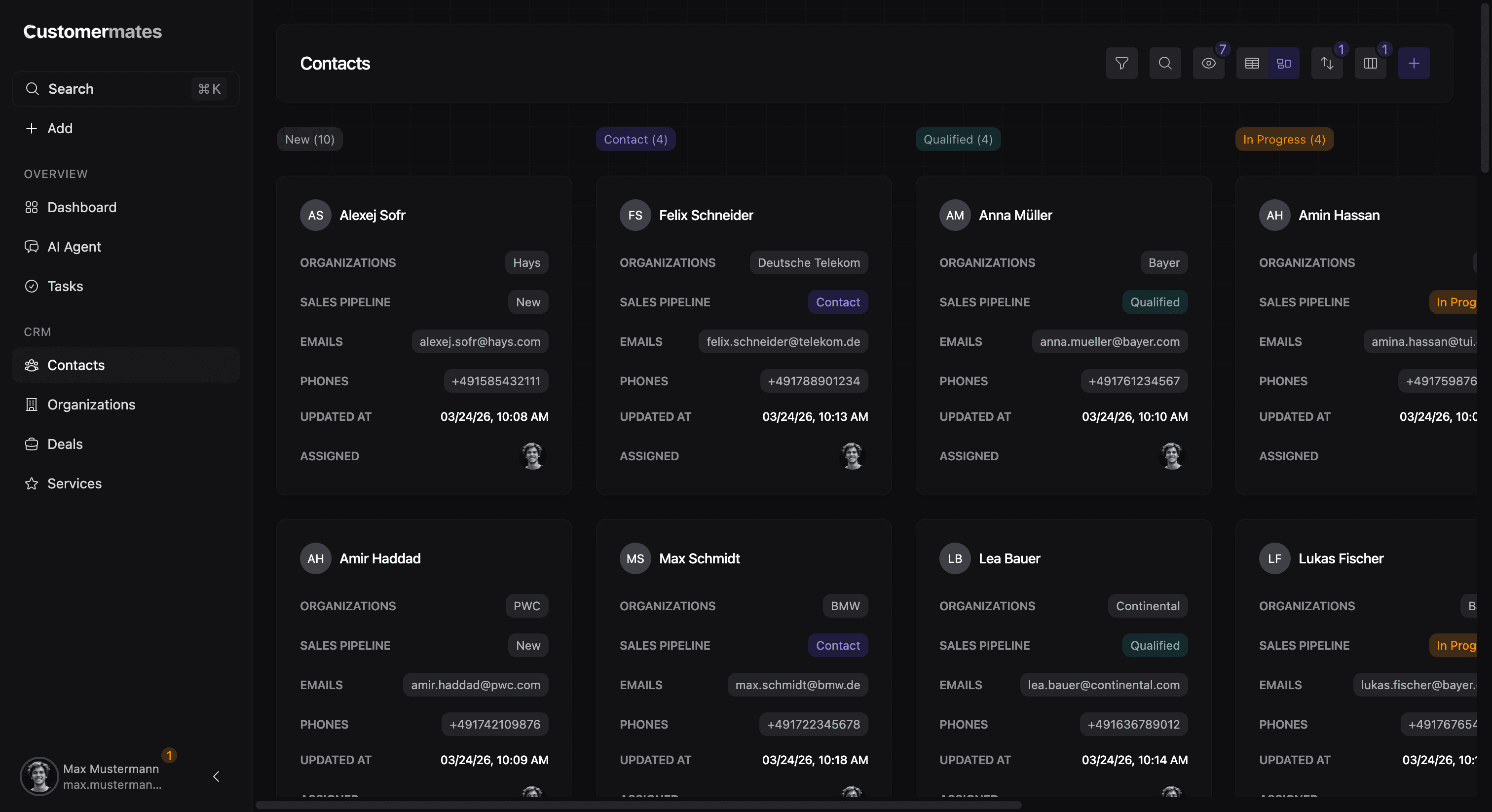
Kanban by sales pipeline
In the third step, the same contacts are shown as a Kanban board grouped by the sales pipeline. That turns the same dataset into a process-oriented working surface for sales stages, handoffs, and progress tracking.
Kanban workflows
Kanban views are useful when teams want a more process-oriented perspective. Records can be grouped by meaningful fields so the view becomes a board for workload, stage, ownership, or another structured dimension.
This is especially powerful when the grouping source comes from a custom column. In that setup, the board becomes a live operational surface rather than a static report.
When teams switch between them
A common working pattern is to begin in table view, narrow the records, and then switch into Kanban once the same dataset needs to be organized by stage, owner, or another workflow field. Teams often move back to table view afterward when exact values, broad review, or cleanup become more important again.
This matters because different work needs different visual structure. The underlying record stays the same, but the surface changes to match the job.
Good operational UX is often not about adding more data. It is about showing the same data in the shape that makes the next action obvious.
If you want to shape those grouping fields, continue with Custom Columns. If you want to analyze the resulting distributions, continue with Report & Statistics.